What It's For
Inventory tracks all your products, stock levels, categories, and IMEI numbers for phones.
Where to Find It
Sidebar → Inventory
The Products Table
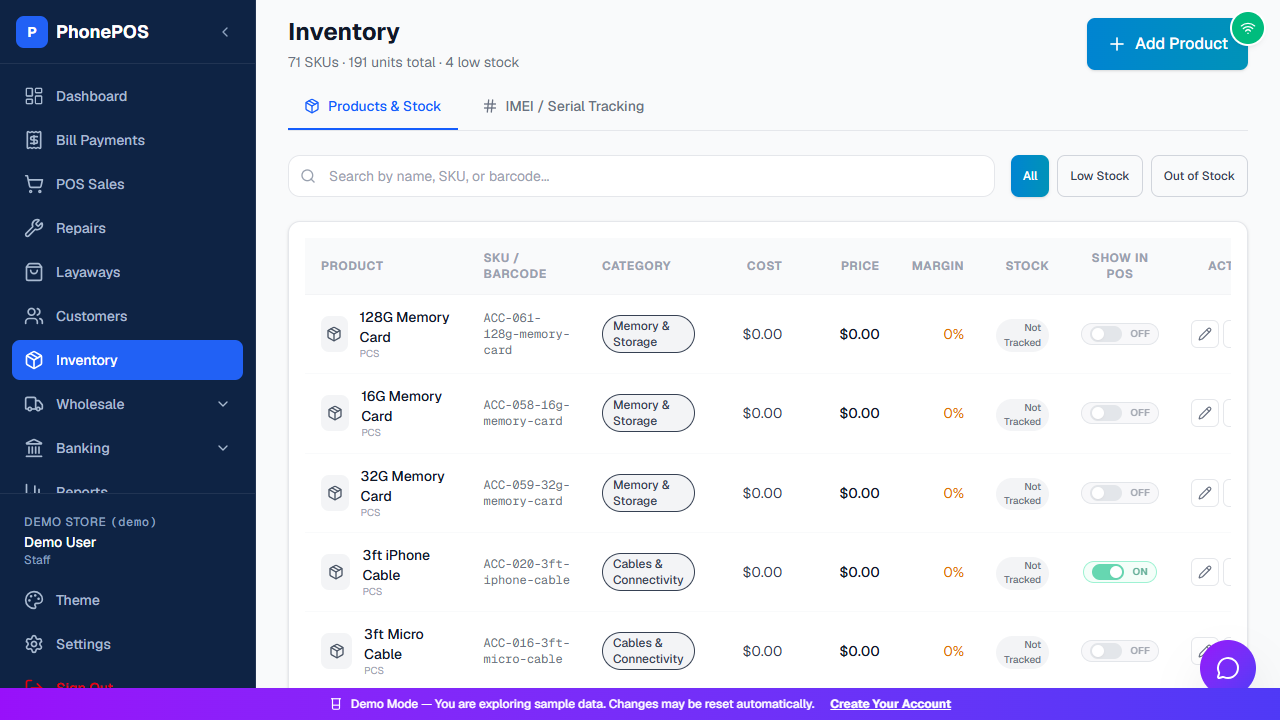
The header shows a summary such as "71 SKUs · 191 units total · 4 low stock". Use the Products & Stock and IMEI / Serial Tracking tabs, the search box, and the All / Low Stock / Out of Stock filters to narrow the list.
| Column | Meaning |
|---|---|
| Product | Product name (click the pencil to edit) |
| SKU / Barcode | Stock keeping unit and barcode |
| Category | Product category (Phones, Accessories, etc.) |
| Cost | Your cost to buy the product |
| Price | Your selling price |
| Margin | Profit percentage: (Price − Cost) ÷ Price |
| Stock | Current quantity / minimum level (shows "Not Tracked" when inventory isn't tracked) |
| Show in POS | Toggle whether the product appears in the POS sale screen |
How To: Add a Product
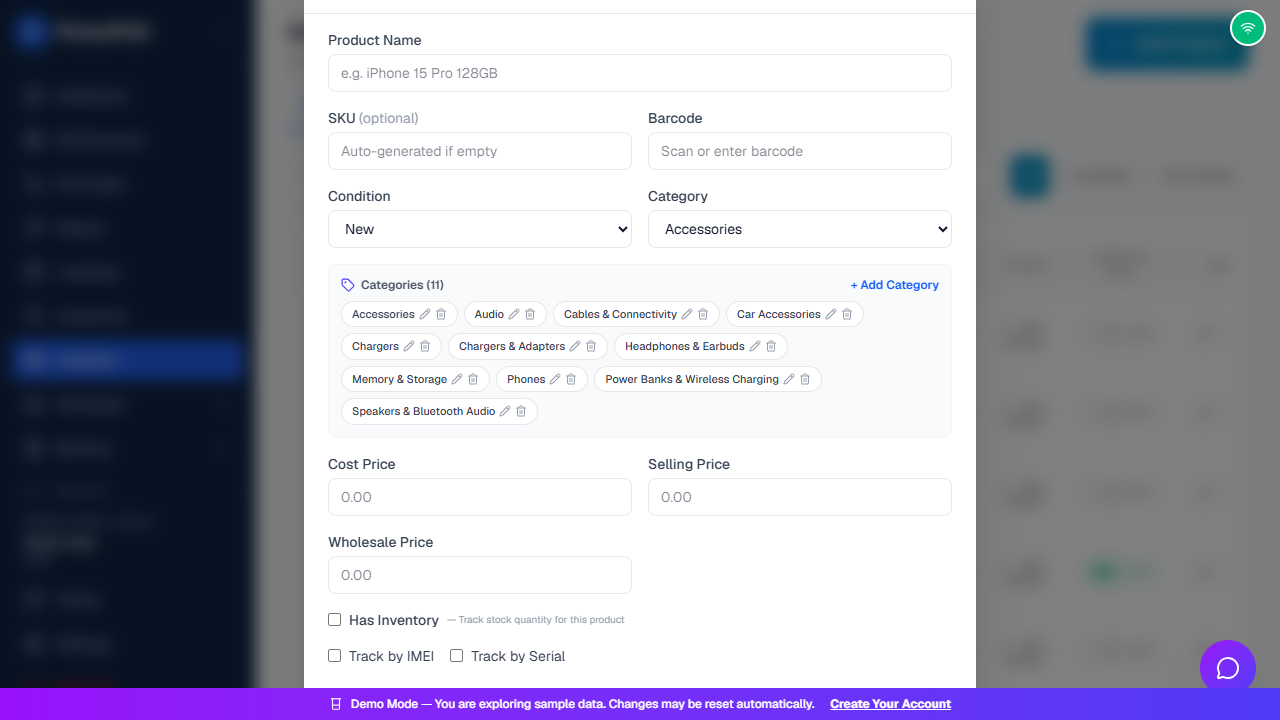
- Click "Add Product"
- Fill in the form:
- Product Name (required): e.g., "iPhone 15 Pro 128GB"
- SKU (optional): Auto-generated if empty
- Barcode (optional): For scanning
- Condition: New, Used, or Refurbished
- Category: Select from the dropdown (or add a new one — see below)
- Cost Price: What you paid for it
- Selling Price: What you charge
- Wholesale Price: Price for wholesale customers
- Has Inventory: Turn on to track stock quantity for this product
- Track by IMEI: For phones — enables IMEI scanning
- Track by Serial: For items with serial numbers
- Click "Save Product"
How To: Show or Hide a Product in POS
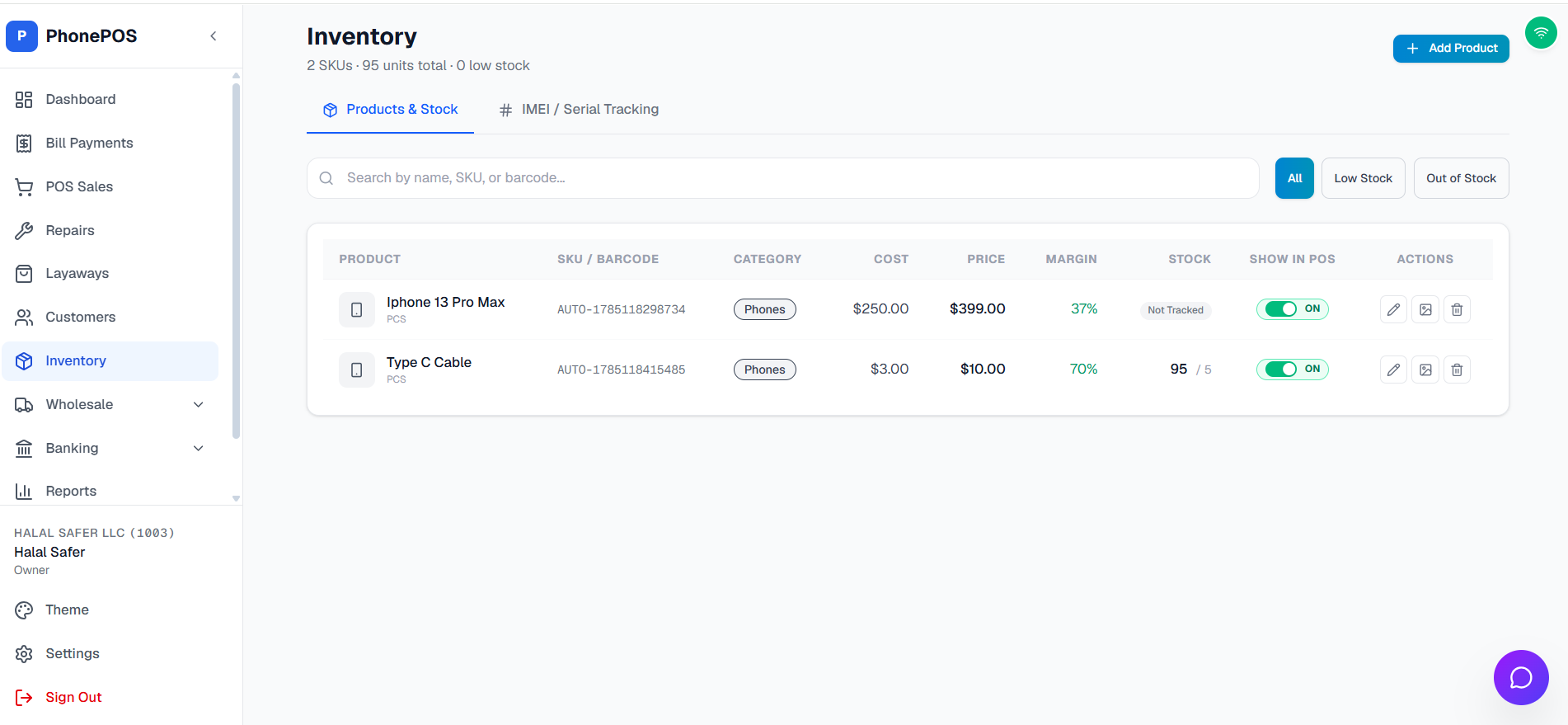
Every product has a Show in POS toggle in the Inventory table. It controls whether the product appears as a selectable card in the POS Sales screen.
To change it:
- Go to Inventory
- Find the product in the table
- In the Show in POS column, click the ON/OFF switch:
- ON (green) — the product is visible and can be sold from the POS sale screen
- OFF (gray) — the product is hidden from POS and cannot be selected at the register
- The change is saved immediately — no "Save" button needed
Tip: Use this to keep accessory stock, spare parts, or special-order items in Inventory without cluttering the POS product cards. A product that is hidden from POS also won't be found by barcode scanning at the register — turn it back ON when you're ready to sell it.
Note: The Show in POS toggle requires a Manager or Admin role. Staff-only users can view it but cannot change it.
New stores can start with a sample catalog that includes fitted product images. Use Show in POS to control which items are offered at the register, and review stock and price before selling a sample item. After changing visibility, reopen POS so its product list refreshes.
How To: Create a New Category
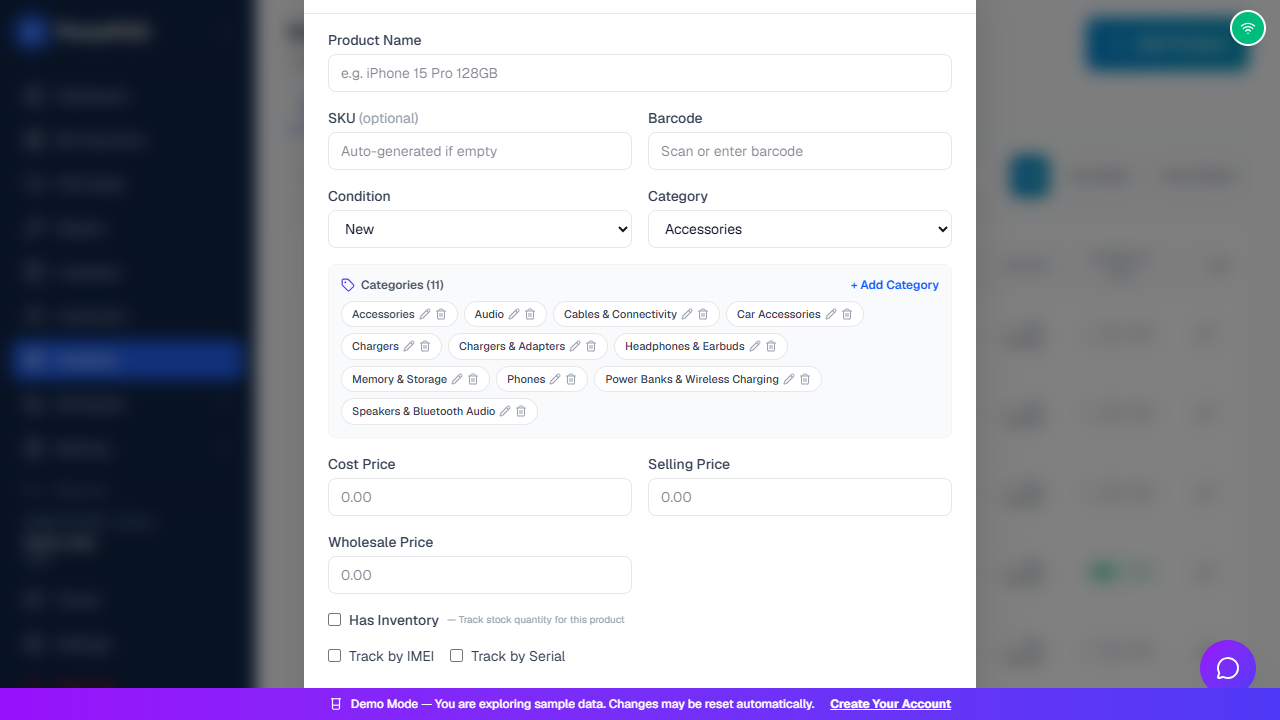
- In the product form, find the Categories list (shown under the Category dropdown)
- Click "+ Add Category"
- Type the category name (e.g., "Cases", "Chargers") and confirm
- The new category appears immediately in:
- The product form's Category dropdown
- The POS sidebar (for filtering products)
Categories Management
The same Categories list in the product form lets you:
- See all categories and product counts (e.g., "Categories (11)")
- Edit a category name (pencil icon)
- Delete a category (trash icon)
IMEI / Serial Tracking
For phones and other IMEI-tracked products:
- When adding a product, check "Track by IMEI"
- When selling, you'll be prompted to scan the IMEI number
- The IMEI is saved with the sale (for warranty/returns)
Where to see IMEIs: Inventory → "IMEI / Serial Tracking" tab
Tips
- Low stock alerts: Products at or below their minimum level show a warning; use the Low Stock filter
- Barcode printing: You can print barcode labels for products
- Bulk import: Use Data Import to upload many products at once