What It's For
Imports let you upload data from other systems (like CellSmart) or from Excel/CSV files.
Where to Find It
Sidebar → Settings → Data Import
What You Can Import
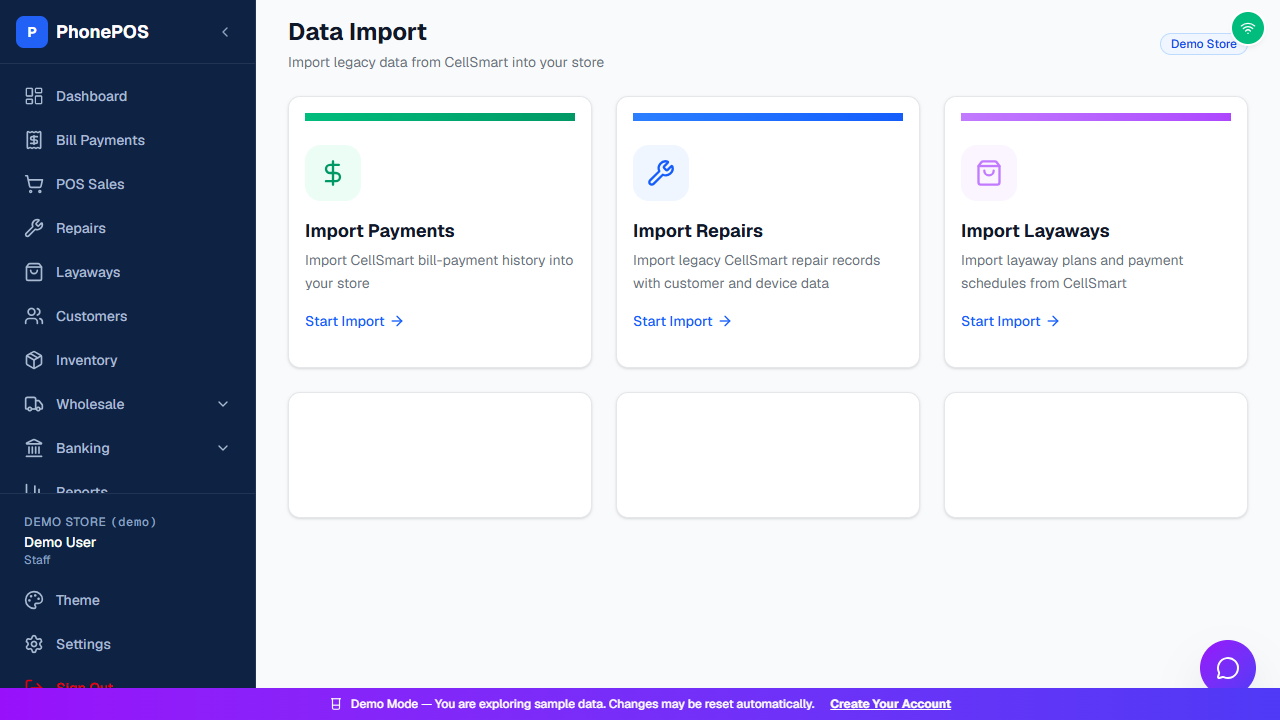
The Data Import page ("Import legacy data from CellSmart into your store") offers three import types:
| Import Type | What It Brings In |
|---|---|
| Import Payments | CellSmart bill-payment history |
| Import Repairs | Legacy CellSmart repair records |
| Import Layaways | Layaway plans and payment schedules |
How To: Import Data
- Go to Settings → Data Import and choose Payments, Repairs, or Layaways.
- Choose a supported CSV or Excel file for that importer and upload it for preview.
- Check the store, row count, dates, carriers, customer information, totals, warnings, and duplicate counts.
- Fix blocking errors. Review warnings separately; a warning is not always a rejected row.
- Confirm the reviewed import and wait for its final result. Avoid starting a second import while confirmation is still running.
CellSmart bill-payment files
The payments importer supports the dedicated bill-payment report (headers such as Paid Date & Time, Phone Number, Pin Number, Carrier) and the transaction-list export (headers such as Tran ID, Date, Customer, Type, Employee, Invoice Notes). For transaction lists, only bill-payment rows are imported. Quoted fields, multiline notes, and Excel serial dates are handled by the importer.
Prefer the dedicated bill-payment report when it includes the carrier. Check the preview carefully: a transaction list that does not contain carrier information cannot recreate missing carriers. Do not confirm a preview full of Unknown carriers. Obtain a better report or correct the source data first.
- Import additional years as separate, reviewed batches when CellSmart cannot export everything at once.
- Review the duplicate count before confirming overlapping lists; do not assume every repeated customer/amount is the same payment.
- Payment Id values mapped into Note retain text such as P or New. Blank values stay blank.
- Historical completed imports are records of past payments; importing them does not collect new money or pay a carrier.
- PDF conversion is not built into this importer. Prepare a supported CSV/Excel file before uploading.
Repair backlogs and warnings
Imported repairs appear in the Repairs table alongside newer tickets, sorted by date with the latest first. Use search and the status filters when looking for older records. Review the preview's duplicate list when adding another year or an overlapping backlog.
PLACEHOLDER_DEVICE_IDENTIFIER means the source has a placeholder instead of a useful device identifier. Inspect the row; do not invent an IMEI. Where the row is otherwise valid, the warning can be reviewed without treating it as a failed payment or repair. Add the correct identifier later using Repair → Edit when the customer supplies it.
Correcting an import mistake
Keep the original source file and the import result. If the wrong batch was imported, identify its store, filename, and batch before requesting rollback. Use an available batch rollback action or contact support; do not delete unrelated live transactions. Recheck the affected count before confirming a rollback, then preview the replacement file.
Data Export and protection
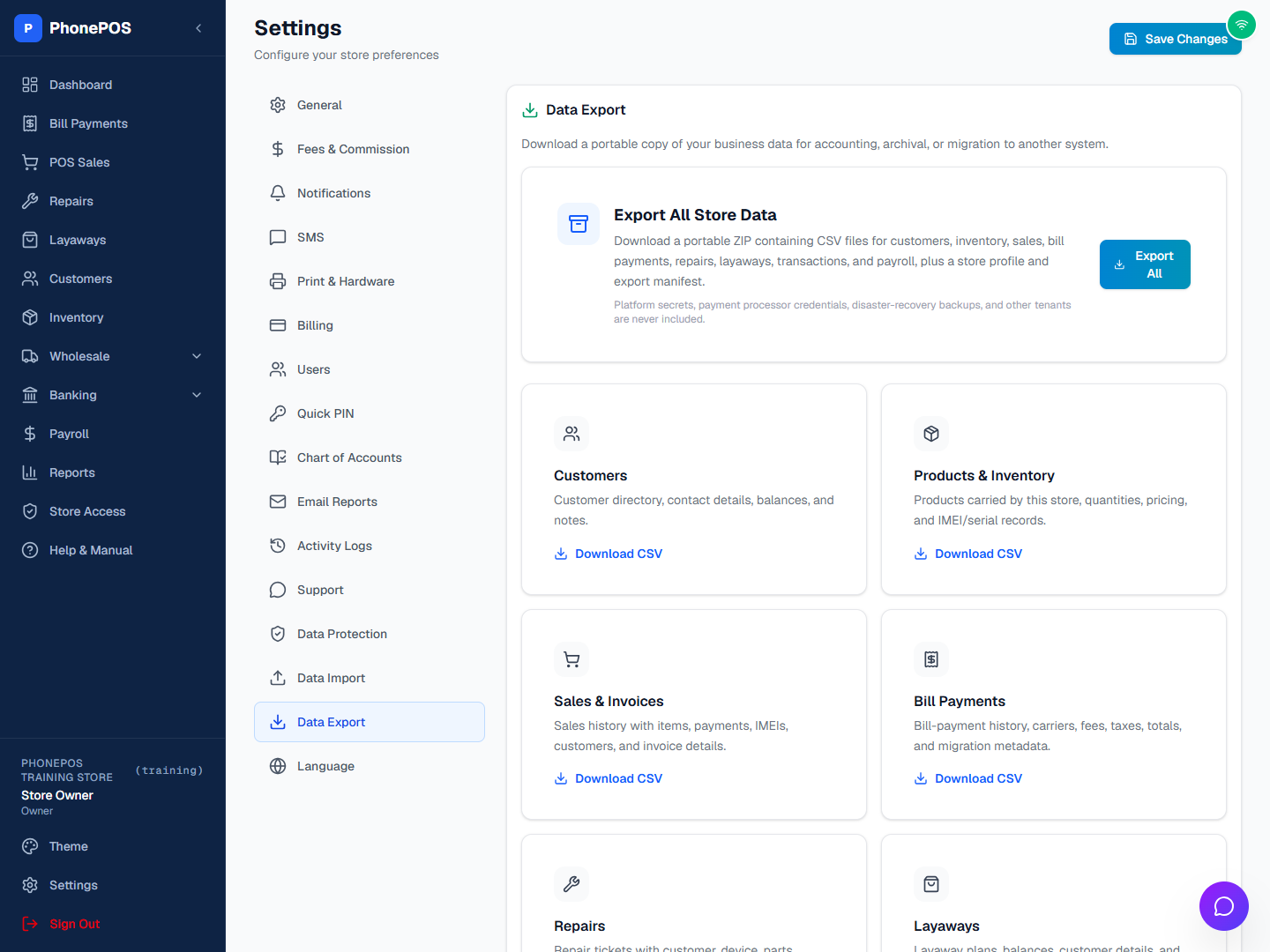
Store Owners and Store Admins can go to Settings → Data Export:
- Choose Download CSV for a dataset such as customers, products/inventory, bill payments, repairs, layaways, transactions, sales/invoices, or payroll.
- Choose Export All for a ZIP of the store's datasets, store profile, and export manifest.
- Review Settings → Data Protection for available backup information and status.
Exports contain the selected store's business data. Keep downloaded files secure. An export is a portable copy; it does not replace the platform's restore process. Managers and Staff cannot use the full store-data export.