The POS Screen Layout
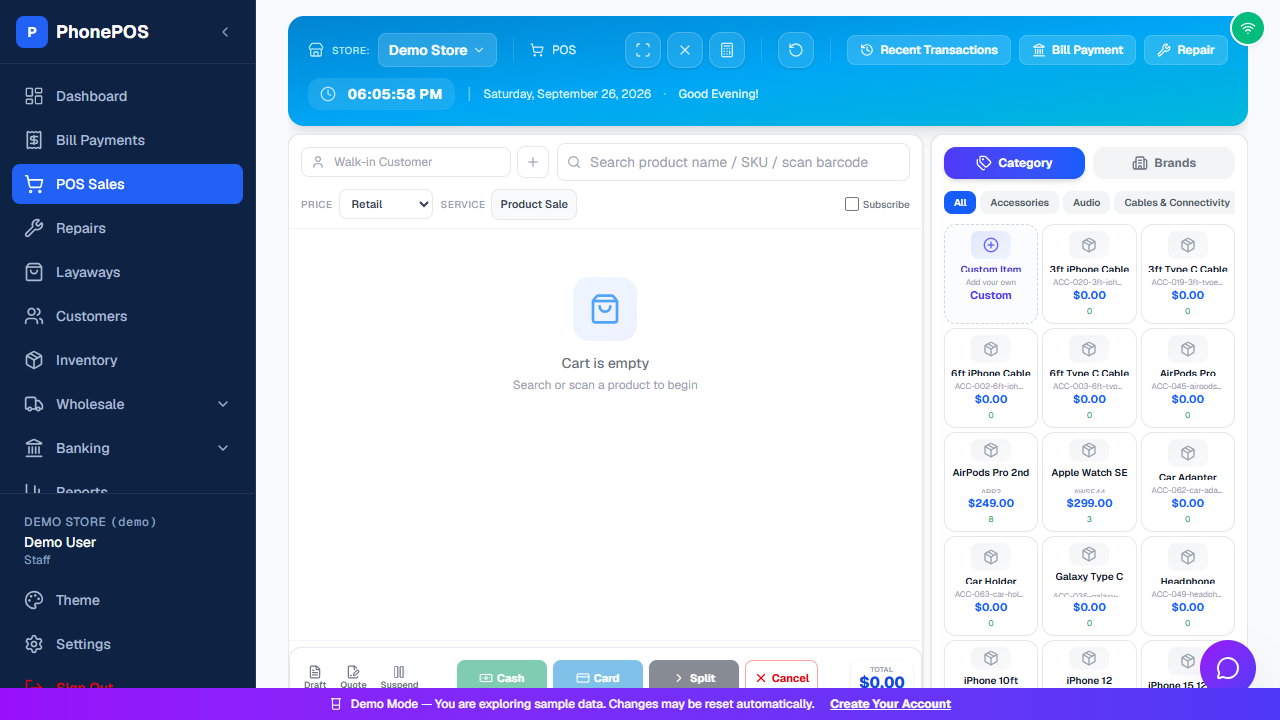
| Area | What It Does |
|---|---|
| Left sidebar | Navigation to other sections |
| Top toolbar | Store selector, POS label, fullscreen/close/receipt/help buttons, and shortcuts to Recent Transactions, Bill Payment, and Repair |
| Center panel | Customer selector, product search/scan, cart, line items, and totals |
| Right panel | Product grid (browse by Category or Brands) |
How To: Make a Sale
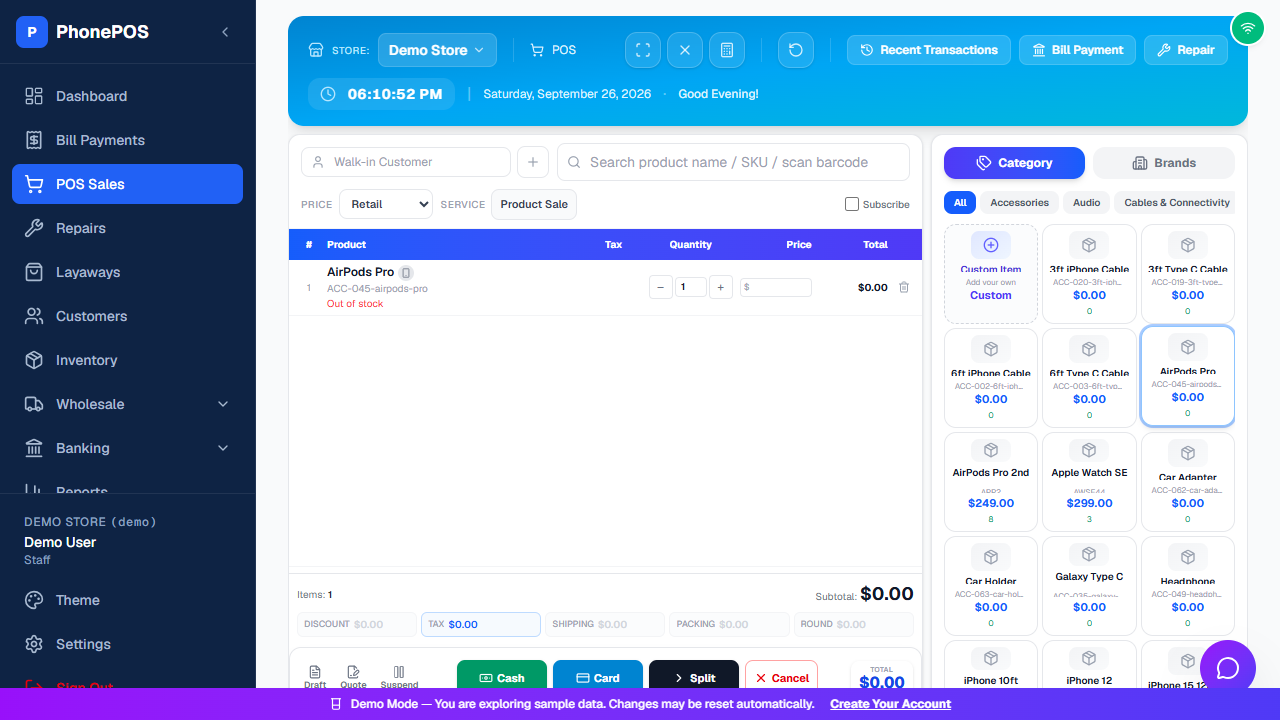
- Find the product — Use the search bar (product name / SKU / scan barcode) or click a product in the right panel
- Click the product to add it to the cart
- Adjust quantity — Use the − and + buttons in the Quantity column
- Choose the price level — PRICE (Retail, or Wholesale if configured) and SERVICE (Product Sale, etc.)
- Select the customer — optional; use the Walk-in Customer field or the + button to add a customer
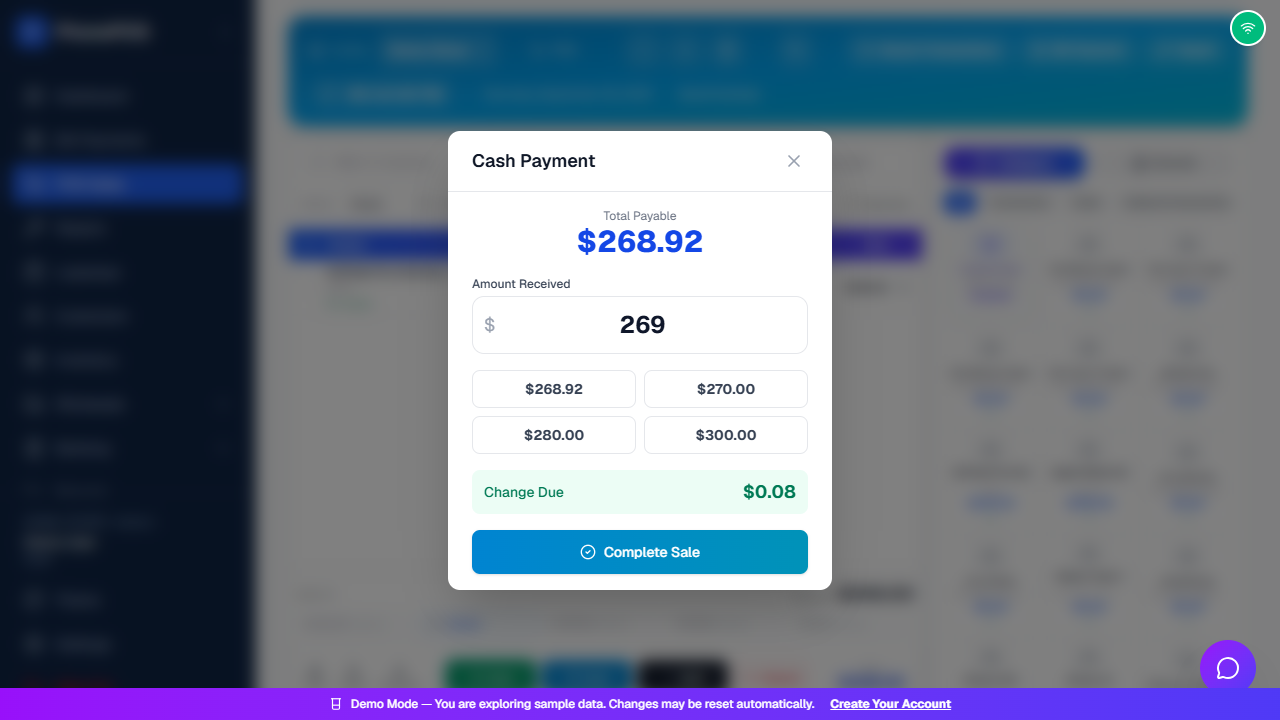
- Choose the payment method — Click Cash (green), Card (blue), or Split
- Enter the amount received — Or use a quick button (e.g., $270.00). The modal shows Total Payable and Change Due
- Click "Complete Sale" to finish the sale
- Print receipt (optional) — A receipt can be printed after the sale
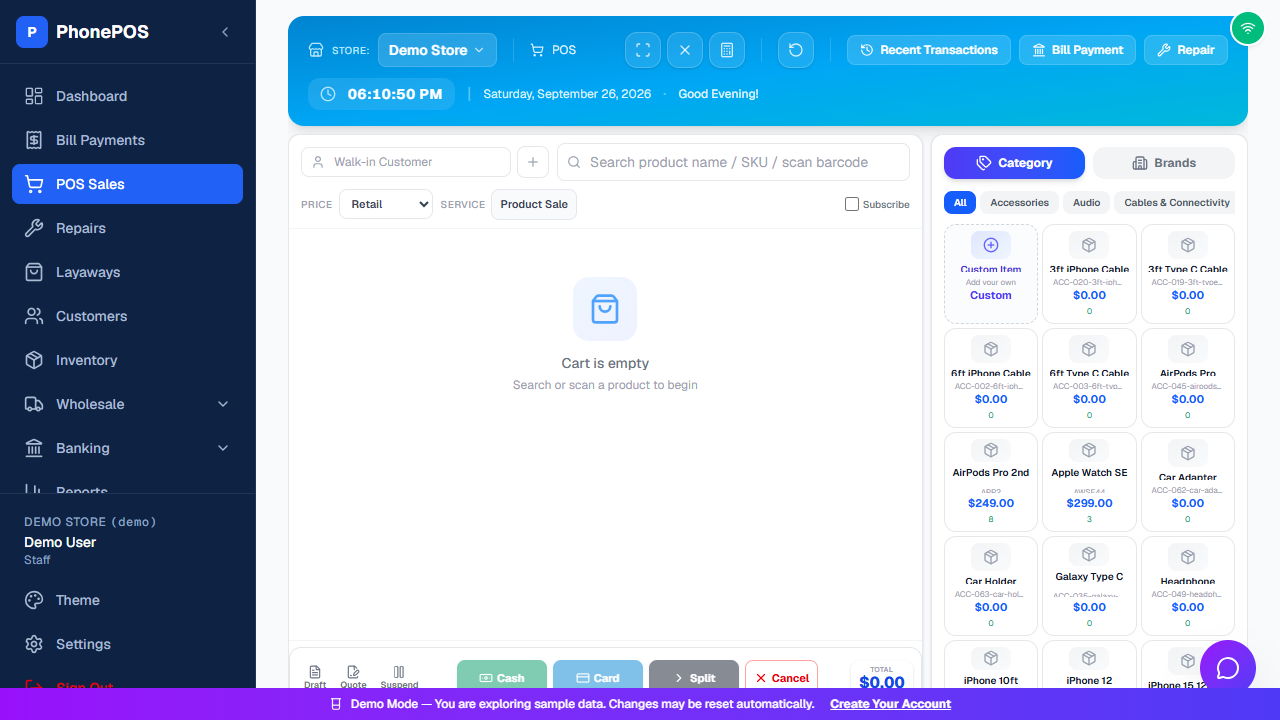
Tip: The empty-cart state is shown below.
Important Fields
| Field | What It Means |
|---|---|
| Price | Product selling price |
| Tax | Automatically calculated from your tax rate (Settings → Fees & Commission) |
| Fee | Card processing fee (if enabled) |
| Discount | Apply a discount to the whole sale (shown above the totals) |
| Shipping / Packing / Round | Optional adjustments applied to the sale total |
| Subscribe | For subscription-based products (rare) |
After the Sale
- The receipt prints if configured
- Inventory counts decrease
- The sale appears in History and Reports
- The customer appears in Customers (if they have an account)
Tips
- Barcode scanning: Just scan a product's barcode to add it instantly
- IMEI tracking: For phones, you'll be prompted to scan the IMEI number
- Quick sale: Use the "Quick Sale" tile on the Dashboard for one-item sales
- Split payment: Use Split to divide a payment between cash and card
- Suspend: Use Suspend to park an in-progress sale and resume it later
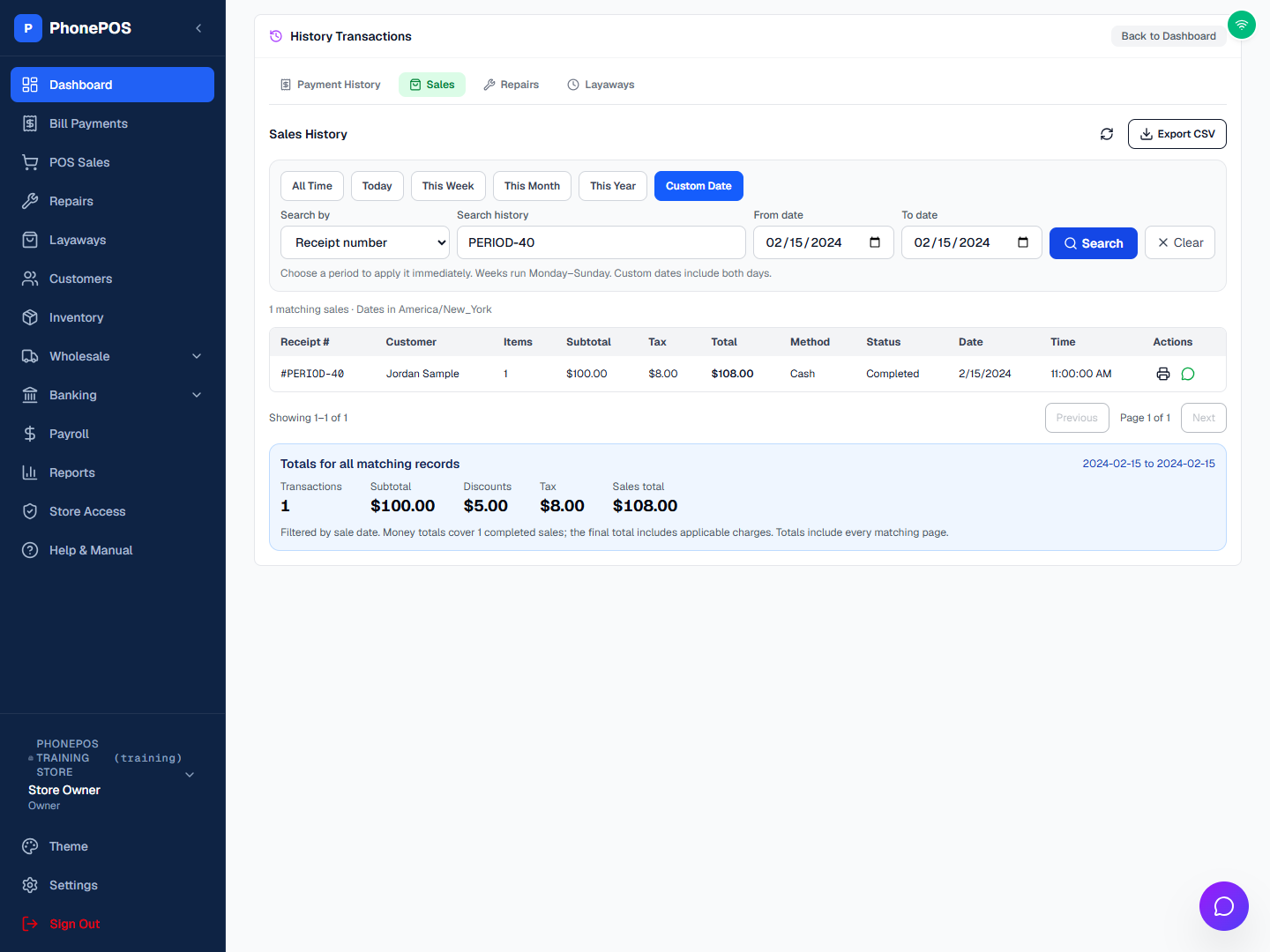
How To: Filter sales history and view totals
Open POS → Recent Transactions, or Dashboard → History → Sales. Choose Today, This Week, This Month, This Year, All Time, or Custom Date. You can combine dates with a search for receipt number, customer name, phone, item, or payment method. Custom dates apply when you click Search or press Enter. Dates use the store's displayed time zone, and weeks start Monday.
Below the table, Totals for all matching records shows the transaction count, subtotal, discounts, tax, and final sales total across every matching page. Money totals include completed sales; non-completed records are excluded. The sales total includes applicable charges. Export CSV downloads all matching records, including older sales beyond the recent pages. Use Refresh to reload saved sales, or Clear to reset the search and dates. View/print and WhatsApp receipt actions remain available on each row.
Common Mistakes
| Mistake | How to Fix |
|---|---|
| Product not found | Check the spelling, or add the product in Inventory first |
| "Amount Required" | The item has a $0.00 price — set its Selling Price in Inventory, or edit the price in the cart before completing |
| Wrong price | Edit the product in Inventory to update the price |
| Can't add IMEI product | Make sure "Track by IMEI" is enabled for that product |