What It's For
Activity Logs show you who changed what and when — for accountability and troubleshooting.
Where to Find It
Sidebar → Settings → Activity Logs (visible to Manager, Admin, or Owner only)
What You'll See
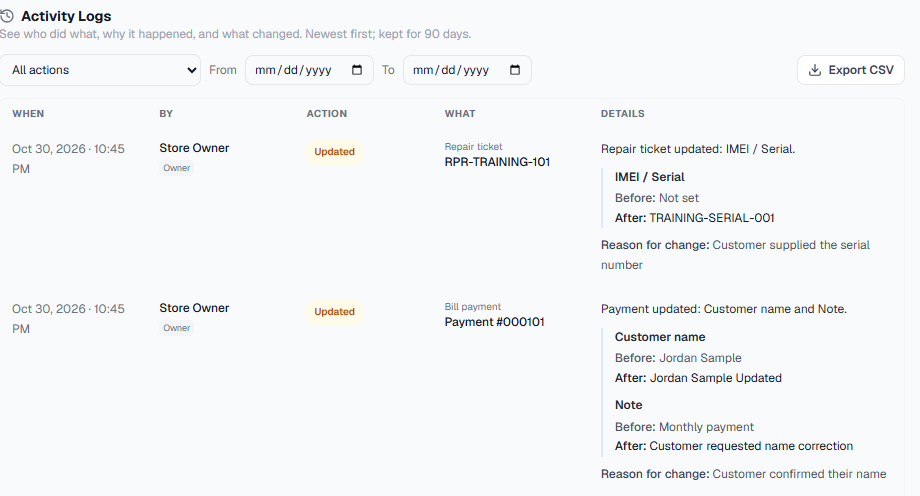
The Activity Logs section shows entries newest-first. Entries are kept for 90 days.
| Column | Meaning |
|---|---|
| When | Date and time of the action |
| By | Which employee did it |
| Action | Readable labels such as Updated, Payment recorded, or Access checked |
| What | The item that was changed |
| Details | Plain-language explanation, named fields, and Before / After values when recorded |
New bill payments
After saving a new bill payment, open this tab or click Refresh. Choose Payment recorded in the action filter to find payments quickly.
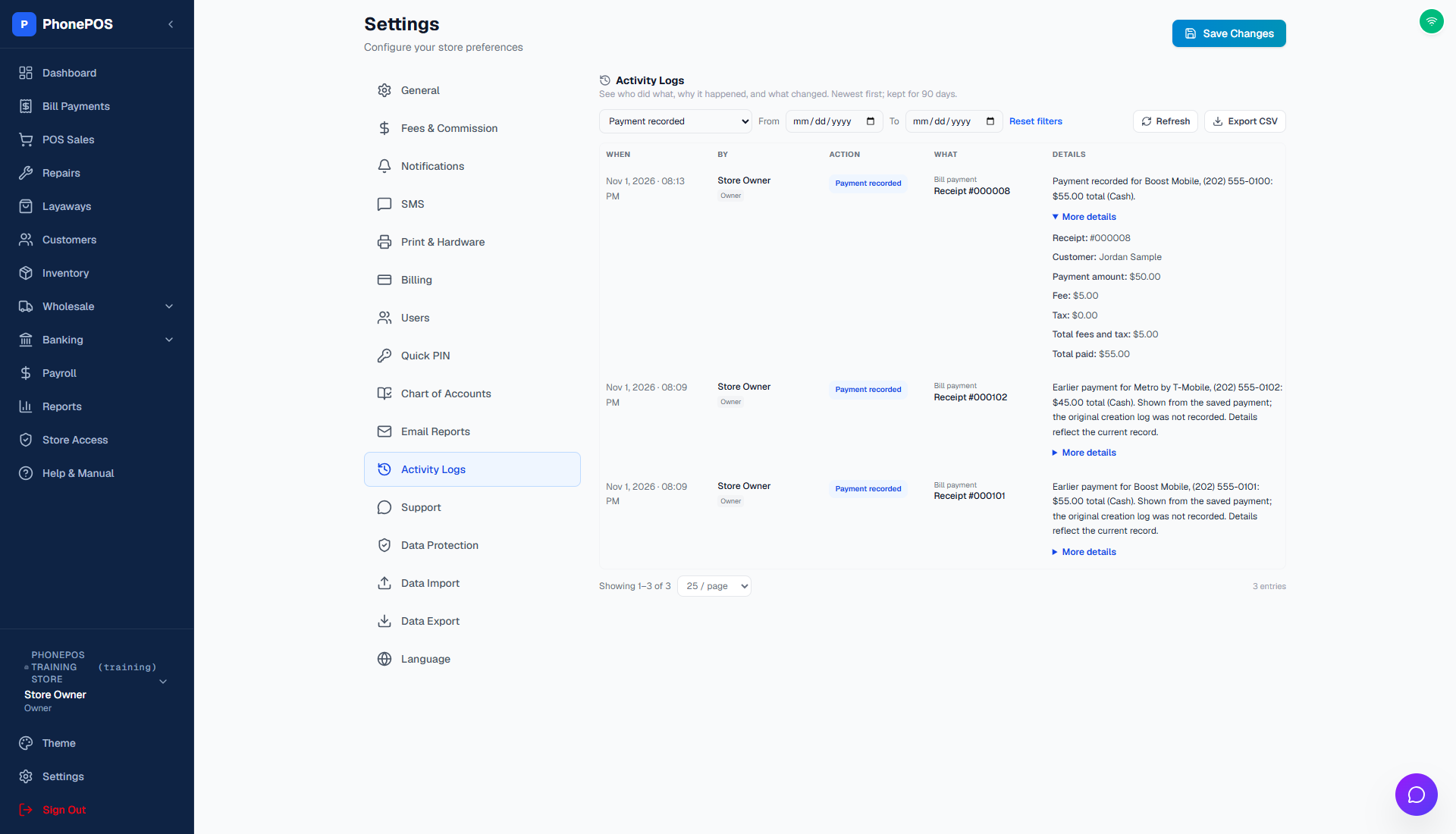
A new entry identifies the employee in By and the receipt number in What. For example: “Payment recorded for Boost Mobile, (202) 555-0100: $55.00 total (Cash).” Open More details for the customer, payment amount, fees, tax, and total. The payment and its creation log save together. Reprinting a receipt does not create another payment entry.
Recent payments saved before creation logging was added can also appear. They say “Earlier payment” and explain that the original creation log was not recorded. These entries use the saved payment's date and employee; their details reflect the current saved record. They do not change the payment or recreate an original audit snapshot. Imported legacy bill-payment lists are not treated as newly created payments.
Reading the details
- An edit shows the changed field and its Before and After value. A blank value is shown as Not set.
- Review the change reason (required for layaway edits). Use the expansion control for additional changes or More details for supporting information.
- Access checked in monitoring mode can explain that an unapproved network was observed but access was allowed. This is different from an access restriction. Read the description before assuming someone was blocked.
- Older records without saved before/after values show the information that was recorded; the log does not invent missing history.
- Long text wraps instead of being cut off. Credential-like information is not shown in generic metadata details.
Filters
- Action type: Filter by Created, Updated, Deleted, etc.
- Date range: From/to specific dates
Export
Click "Export CSV" to download the filtered logs with the same readable descriptions and before/after text.
Retention
Logs are kept for 90 days and automatically deleted after that.