What It's For
Multi-Store Management lets you operate and oversee more than one store from a single account.
Where to Find It
Sidebar → Stores
What You'll See
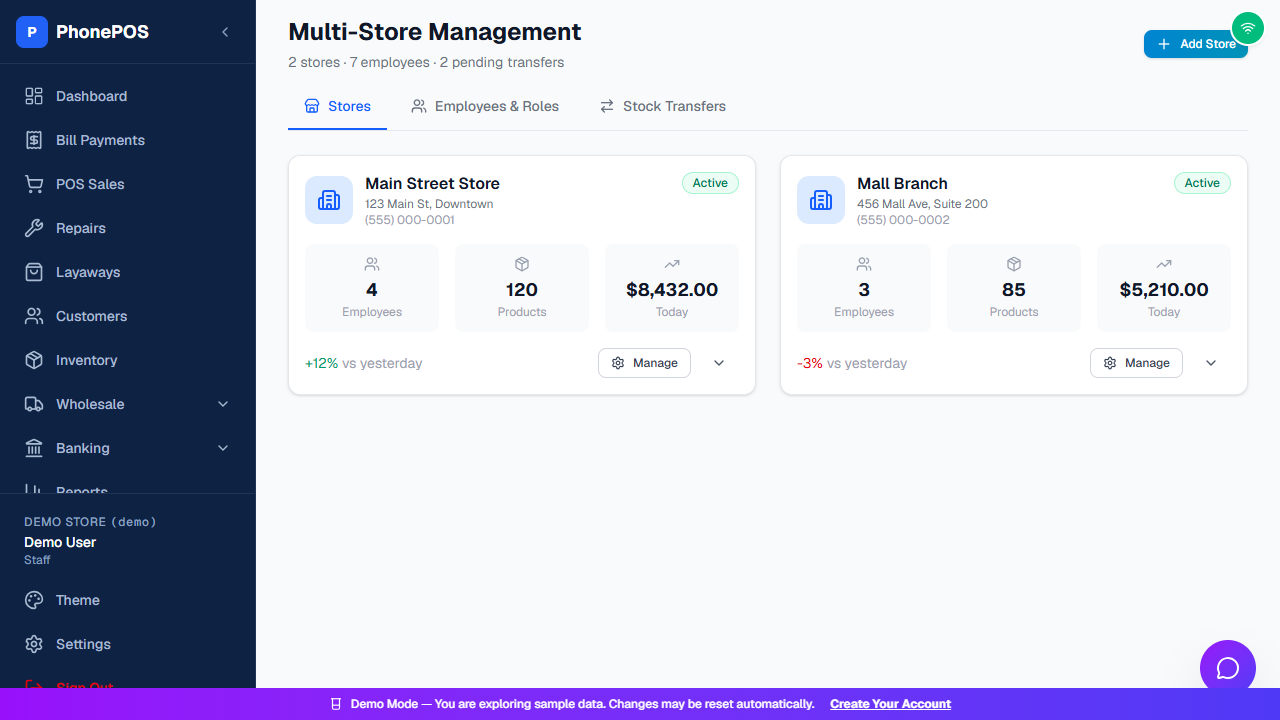
The page header shows a summary such as "2 stores · 7 employees · 2 pending transfer" and an "Add Store" button. It has three tabs:
| Tab | What It Does |
|---|---|
| Stores | One card per store with Employees, Products, and Today's sales; use Manage to open a store |
| Employees & Roles | Manage employees and their roles across stores |
| Stock Transfers | Move stock between stores |
How To: Add a Store
- Go to Stores
- Click "Add Store"
- Enter the store details and save
Tip: Each store keeps its own carriers, settings, inventory, and users — data is isolated per store.
Store access and multiple computers
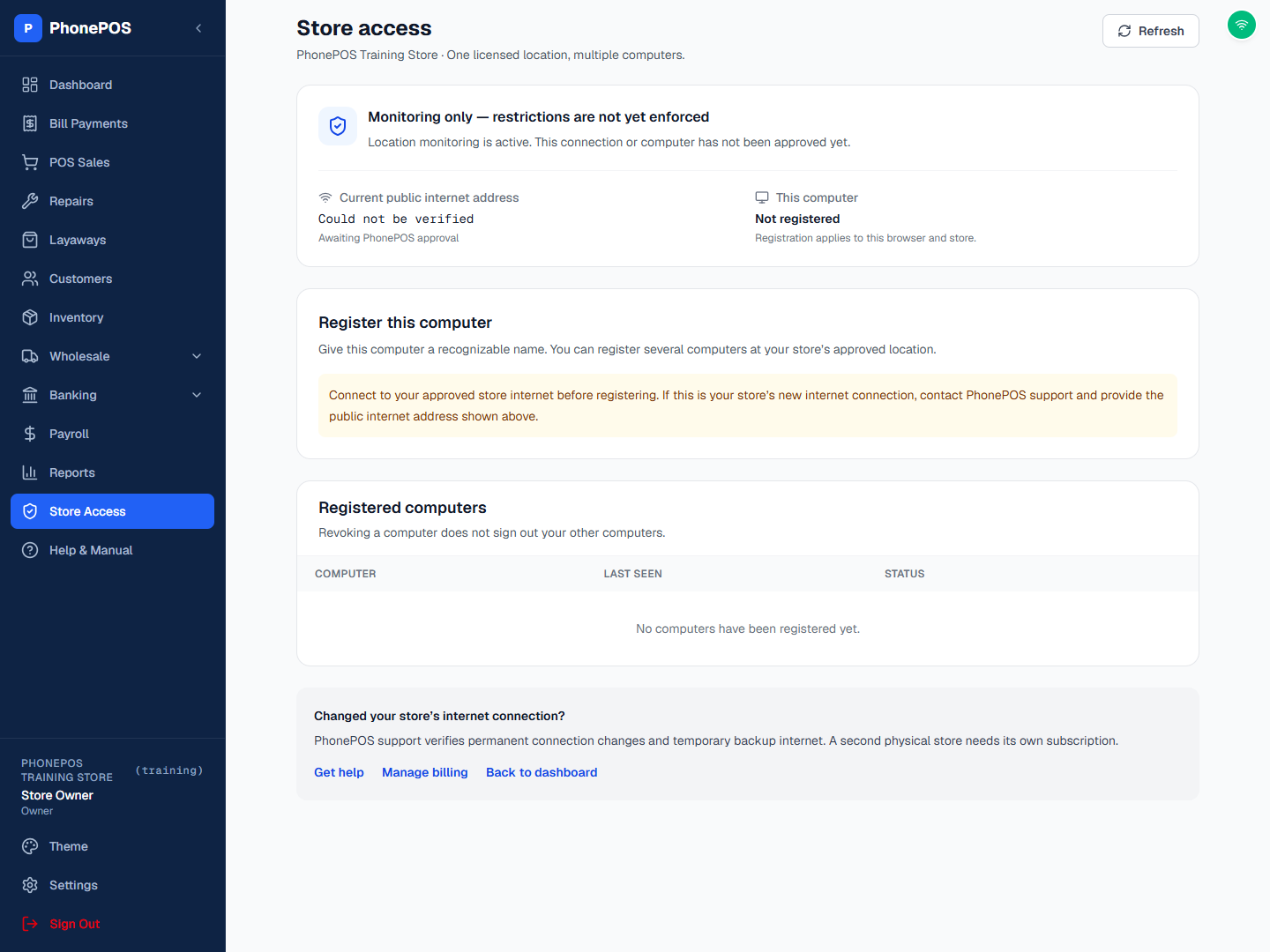
Open Sidebar → Store Access to see the current store connection and registered computers. One licensed location can use multiple approved computers. A separate physical location needs its own store subscription.
- Monitoring only: Access is observed and logged; restrictions are not yet enforced.
- Enforced access: Store operations require an approved store network and a registered computer. Owners may have remote read-only access when that option is enabled.
- A Store Owner, Admin, or Manager registers a computer from the approved connection. Give it a recognizable name.
- If the store changes internet provider or uses backup internet, contact support with the public internet address shown on this page. Signing in again does not automatically approve a new location.
These controls apply to online access. They do not expand the offline features described in Chapter 15.